 PageSnap
Headers appear once
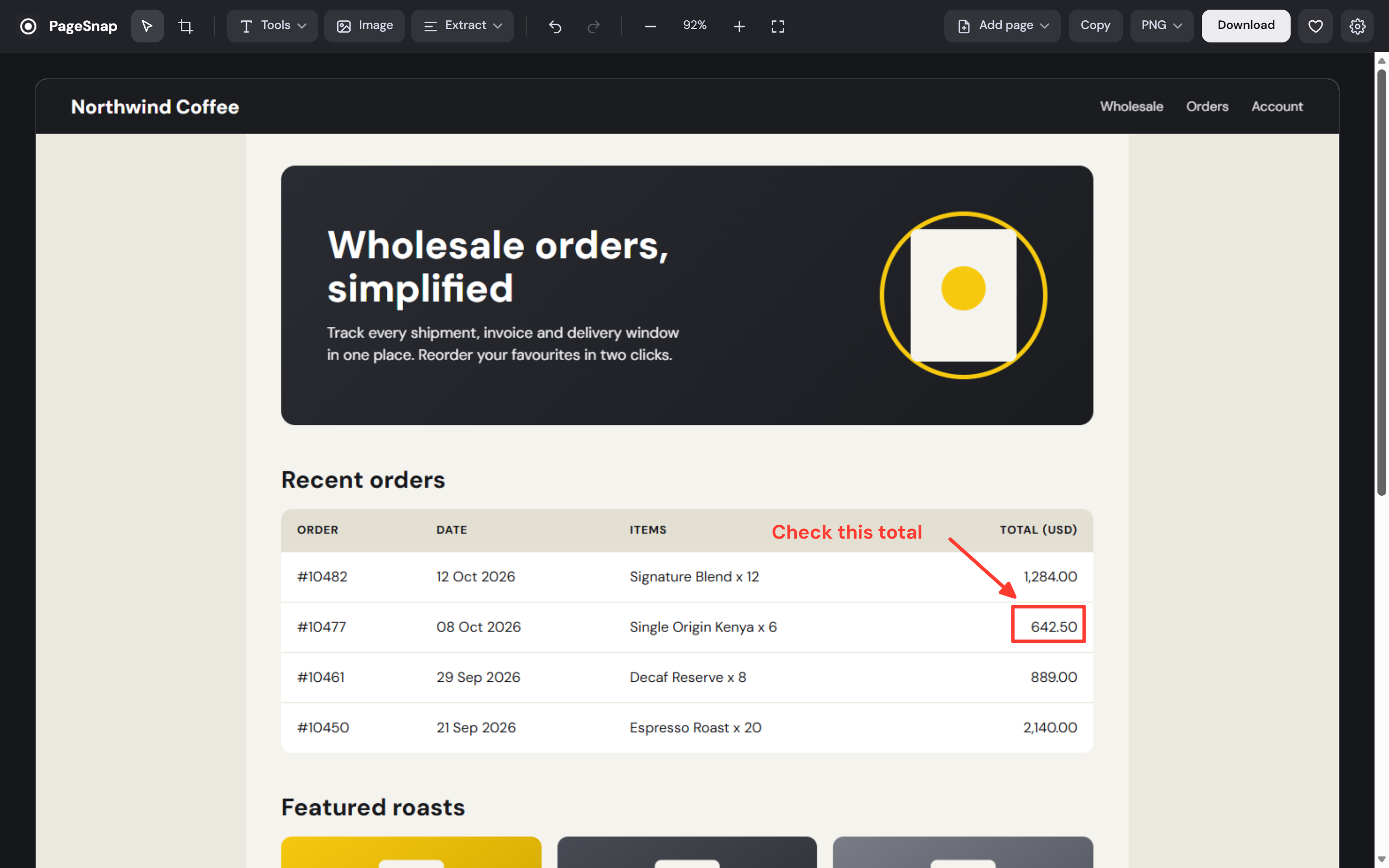
Fixed and sticky bars show at the top and stay out of the middle, so your menu is not repeated down the page.
PageSnap captures a full page the way you actually see it: fixed headers once, images loaded, animations finished. Then it lets you copy the text, blur private details and export to PDF, Word or Excel.
See it in 50 seconds
Why it comes out right
Most full-page tools stitch what they see and hope. PageSnap deals with the things that break long screenshots.
Fixed and sticky bars show at the top and stay out of the middle, so your menu is not repeated down the page.
Fonts, lazy images and scroll animations finish before each frame is taken. No half-faded sections.
Long conversations inside a scrolling pane are captured end to end, not just what fits on screen.
Open a PDF in Chrome and capture every page as one image, with the text still copyable.
Add more pages from a link or another tab. Export gives each screenshot its own PDF page.
Captures keep your display's full pixel density, on retina laptops and large monitors alike.
Capture the whole page, just what is on screen, or drag a box around the part you want.
Alt+Shift+P for the full page, V for the visible area, S to select. Or right-click any page.
Wait 3, 5 or 10 seconds to open a menu first, and copy or save the result without opening the editor.
Turn any long page into a short animation that scrolls from top to bottom, ready to share.
Number the steps of a tutorial or dim everything except the part you want people to look at.
Pick your theme, and use PageSnap in English or Arabic with a full right-to-left layout.
Edit
A built-in editor with the tools people actually reach for.
Extract
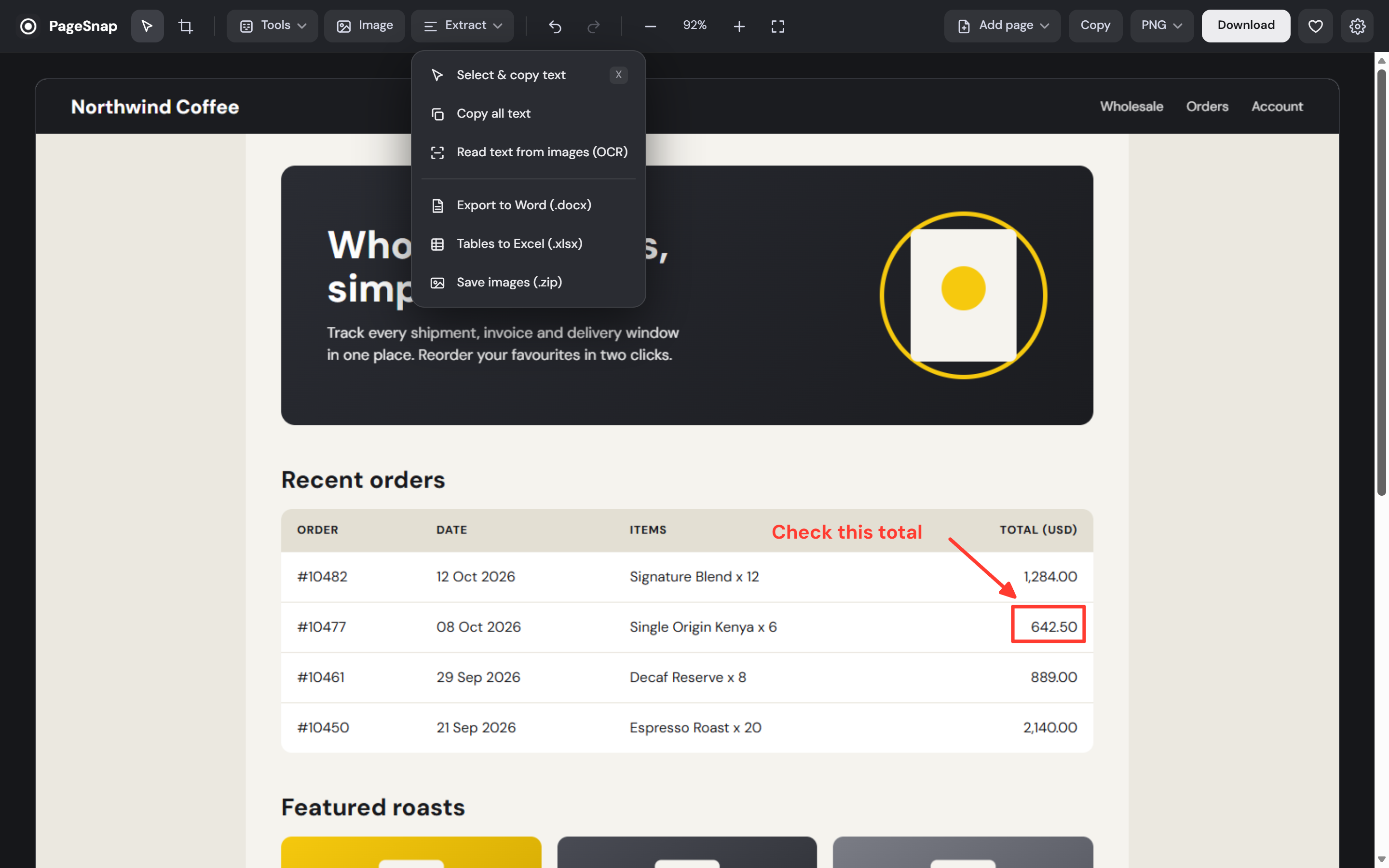
A screenshot should not be a dead end.
Pages
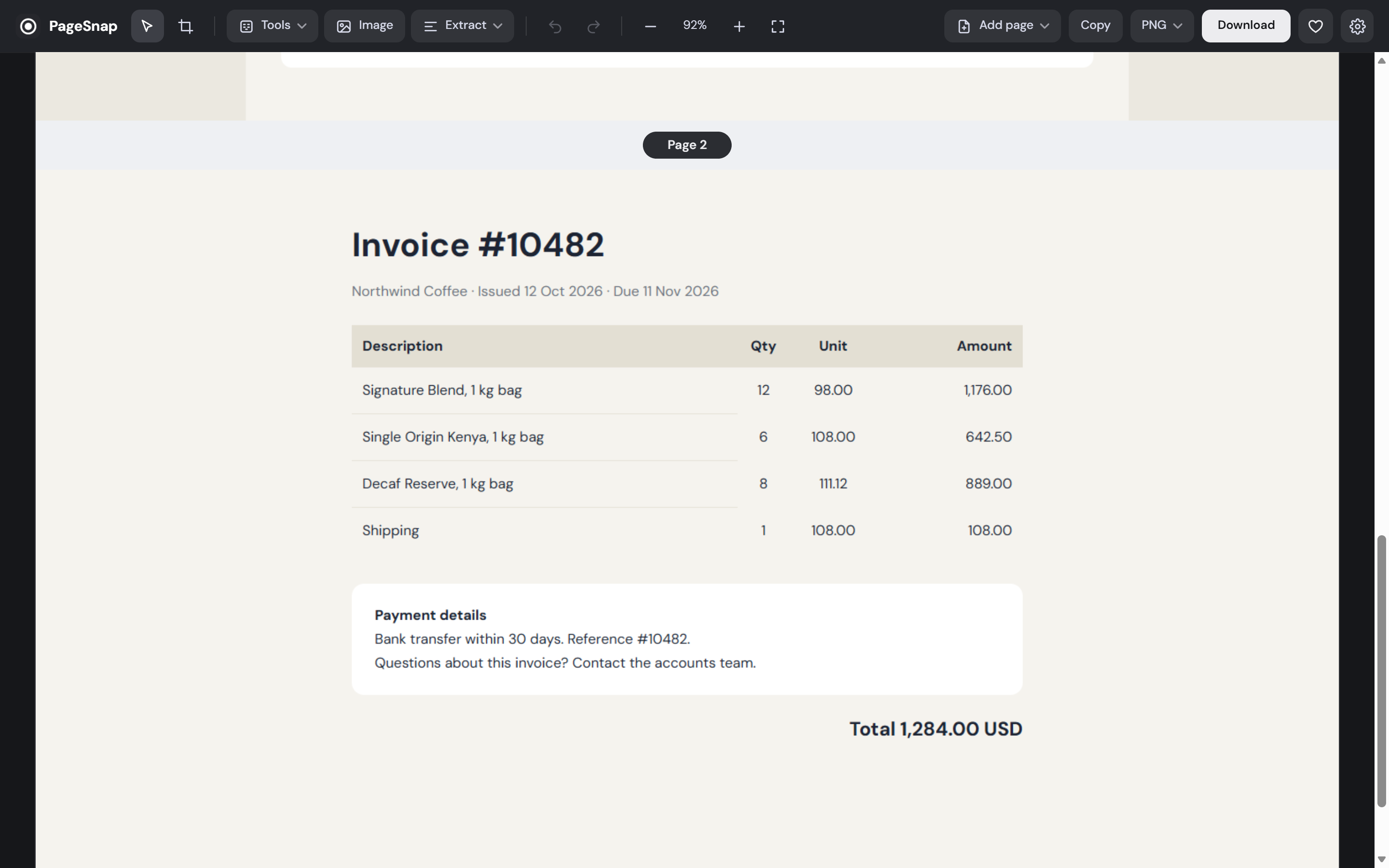
Add another page from a link or an open tab. Each one is labelled, and the PDF gives every screenshot its own page.
Pictures
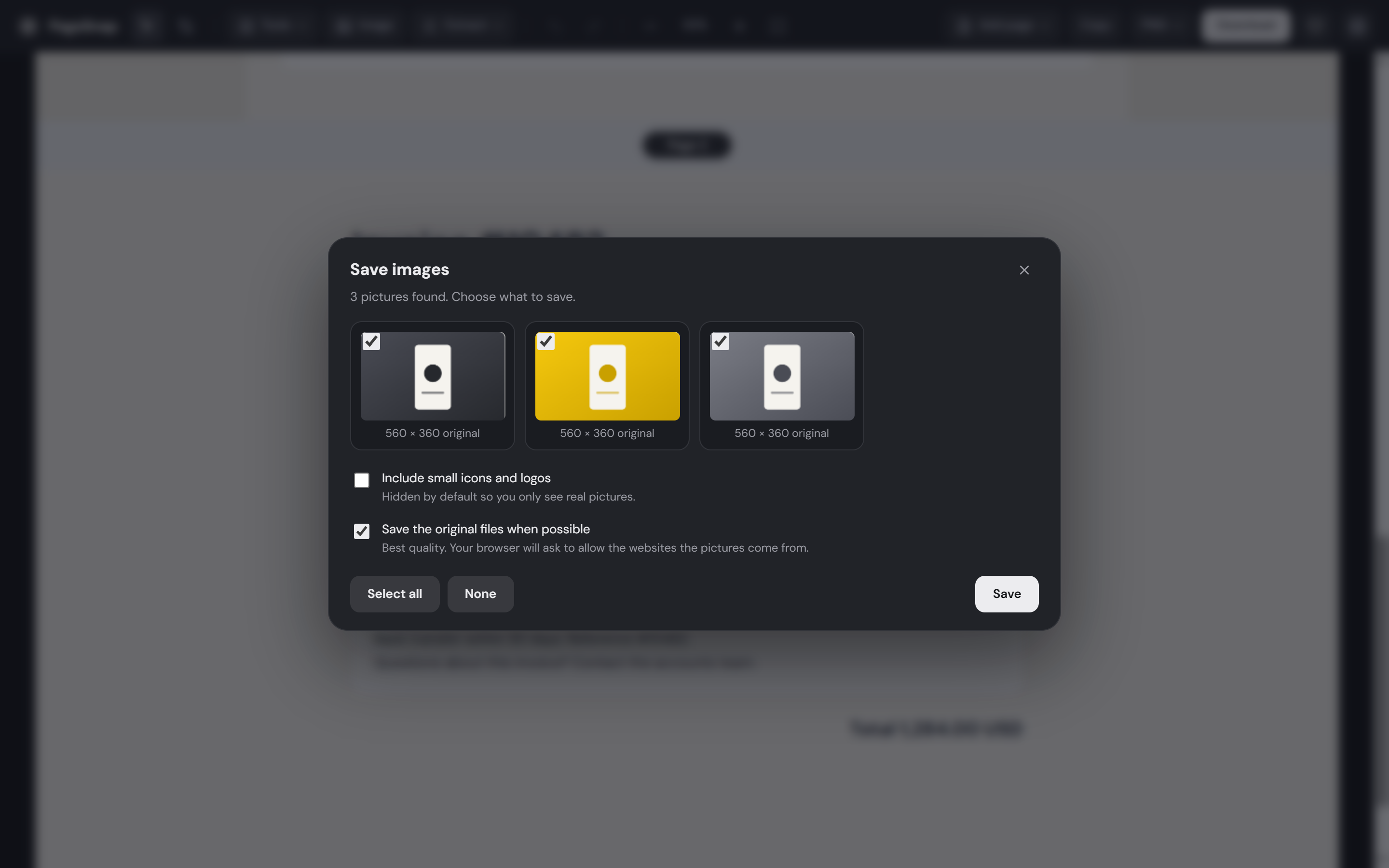
PageSnap lists the real pictures on the page, largest first, with their original sizes. Tick what you need and save them as files or a zip. Small icons and logos stay hidden until you ask for them.
Privacy
Your screenshots are yours. There is no account and no server.
Capture, editing, OCR and exports all happen inside your browser. Your screenshots are never uploaded.
PageSnap asks for the bare minimum, and only works on the tab you click it on. It cannot read the sites you visit.
The extension never reports what you capture or where. The code that runs is the code you installed, nothing is loaded from the internet.
activeTabLets PageSnap take a picture of the page you click it on, only then.
scriptingScrolls that page and reads its text so you can copy it later.
storageRemembers your settings and keeps your latest screenshots on this device.
contextMenusAdds the PageSnap entries to the right-click menu.
clipboardWriteCopies your screenshot to the clipboard when you ask it to.
Asked only when you add a page by link or save original image files, and only for that one website.
Start
Questions
Install a full page screenshot extension such as PageSnap, open the page and click its icon or press Alt+Shift+P. It scrolls the page, waits for images to load and gives you one image to edit, copy or download as PNG, JPG or PDF.
Yes. Capture, editing, OCR and exports happen on your computer. The extension has no account, no analytics and does not upload your screenshots.
On your computer only. PageSnap keeps your ten most recent captures in your browser so you can reopen them, and you can choose any folder for saved files in Settings.
Chrome does not let any extension capture its own pages, such as the New Tab page or the Chrome Web Store. Every normal website works.
Yes. Open a PDF in Chrome and click PageSnap. It builds one image of all pages with the text still selectable. Local files need "Allow access to file URLs" turned on once.
Yes. Text from the page itself is exact, including Arabic. For pictures and scans PageSnap reads English and Arabic on your computer. Very stylised fonts or low-quality images can still produce mistakes.
Yes. Use Add page in the editor: paste a link or capture from another tab. A PDF export gives each page its own page.
Yes, on any computer that runs Chrome. Shortcuts use Command and Option where that is the convention.
Guides
Three ways, from one click to DevTools, and how to fix repeated headers and blank images.
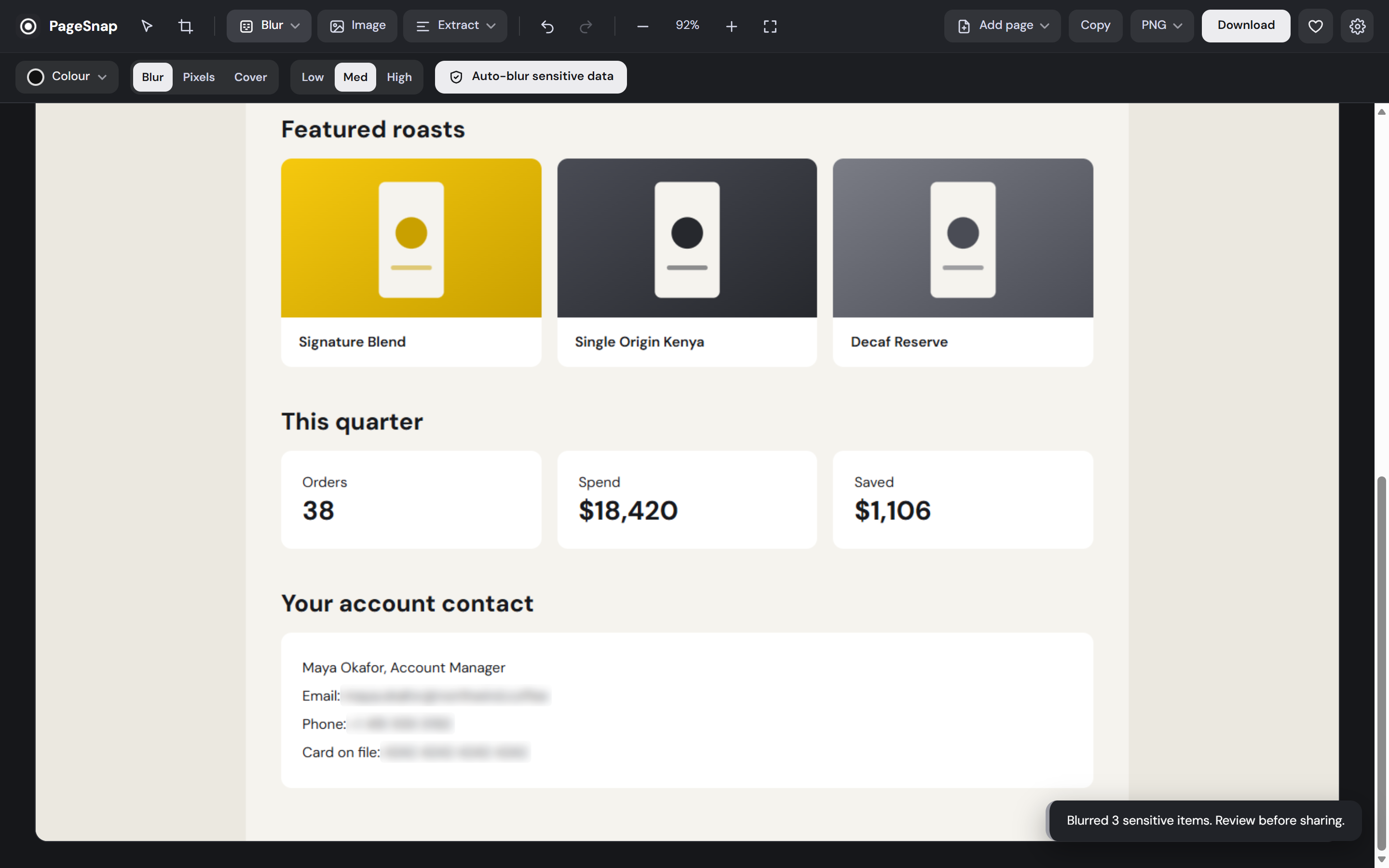
Hide emails, cards and phone numbers before you share.
Real page text and built-in OCR in English and Arabic.
One long page or A4, without cut-off text.
What PageSnap adds after the capture.
Support, feedback and business enquiries.
Private, no account, and about ten seconds to set up.
Know someone who takes screenshots?